

So your new amp just arrived. You've unboxed it, you've looked at it, you've maybe already plugged in just to hear it cold. Good instinct. Positive Grid's REACTOR is an intelligent guitar combo amp that builds tone from text prompts, photos, and audio recordings — and there's a lot it can do right out of the box before you ever open the app. Here's how to get the most out of it from minute one, without having to go into the manual.
Power Up
Turn your volume down first, then flip the power switch. That's the kind of advice that sounds obvious until you don't do it and your neighbors file a noise complaint. Volume down, power up, then bring it where you want it.
Get to Know REACTOR's Top Panel
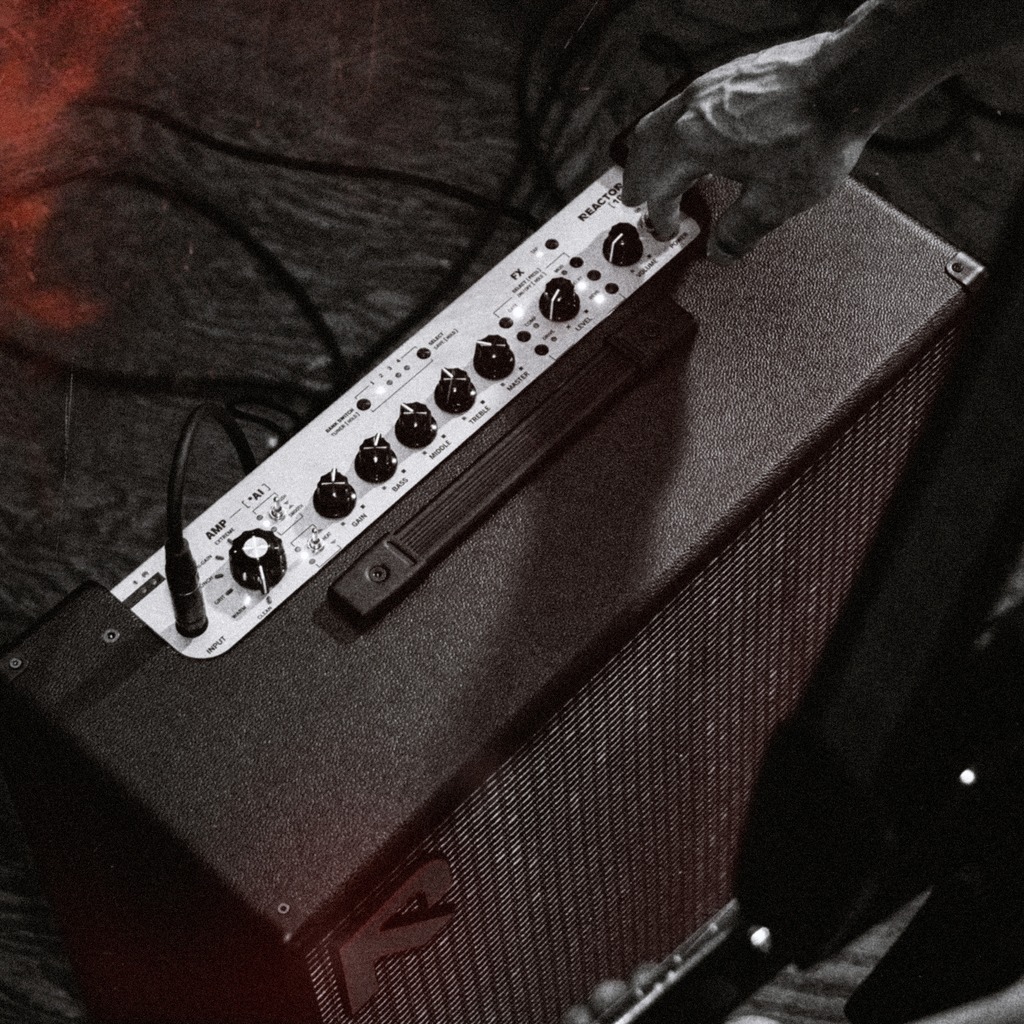
REACTOR's top panel is pretty intuitive once you know what you're looking at. The Amp Selector knob cycles through six amp styles, Clean, Warm, Grit, Crunch, Hi-Gain, and Extreme. Worth knowing: it only swaps the amp in your signal chain, so your pedals and effects stay exactly where they are while you audition different amp flavors. From there, your Gain, Bass, Middle, Treble, and Master knobs do exactly what you'd expect. The FX section lets you tap to select an effect and hold to toggle it on or off, with the Level knob adjusting mix or output depending on what you've got loaded. There's also a built-in tuner, accessible by holding the Bank Switch button on the preset section. Simple.
On the back panel, the Power Control switch lets you run at full wattage for live performance, drop to 25W for rehearsal, or bring it all the way down to 1W for late-night playing at home. Same amp, same tone, just at a volume that works for the room you're actually in.
The AI Switches Are Your New Best Friends
Just to the left of the main amp controls you'll find two switches that don't exist on any other amp: Push/Smooth and Heat. Push shifts your tone forward with more bite and presence, great for cutting through a mix. Smooth softens the attack for something more laid-back. The center position is the amp's default. Heat is a five-stage toggle that adjusts feel and harmonic response without significantly changing your volume. Crank it for a faster, tighter attack, or dial it back for something smoother and more elastic. Both are powered by Amp Intelligence, so they're doing real work under the hood, not just moving an EQ band around.
Presets: Save What You Love
REACTOR has eight onboard preset slots across two banks, four per bank. Tap the Preset Selector to cycle through presets in the current bank, and hold it to save whatever you're playing right now. Found something you love while noodling? Hold that button. Done.
Now Open the REACTOR App
This is where things open up. Download the REACTOR app, log in, and connect to your amp over Wi-Fi. Once you're in, you'll see the Creator Hub, and this is where REACTOR earns its reputation.
Type a prompt describing what you want, something like "a warm vintage amp with natural breakup," and Amp Intelligence builds you a tone from it. You can also tap the mic and describe it out loud if typing mid-session feels like too much effort, which, fair. From the "+" menu you can also go deeper: generate a custom amp model on its own, upload a reference audio file, or add an image to inspire the tone. Snap a photo of an amp you've always wanted to try, or a pedalboard you saw online, and let REACTOR build something from it. If you want to know what tone matches the song you've been learning, use Tone Capture to upload a track or record directly through your phone, and REACTOR will generate four preset options based on the guitar tone in the recording.
There's also a Fix My Tone feature where you just describe what isn't working and the app suggests and applies adjustments. "Too muddy in the low mids" is a valid prompt. It works.
The Tone Page
Once you've got a tone you like, the Tone Page is where you go to fine-tune it. You'll see the full signal chain laid out visually, every amp and effect block at once. Drag blocks to reorder them anywhere in the chain, double-tap to swap amp or effect models, and tap and drag the knobs to dial in parameters. To save your changes to a preset, go to the Tone Page Action Menu and hit Save Preset. You can also assign presets directly to the hardware buttons from here, and upload your tones to ToneCloud to share them with the community, or just raid what everyone else has already built.
One More Thing
REACTOR learns how you play over time. Its Tone Memory tracks your prompts and adjustments so that each session starts a little closer to where you want to be. If you ever want to wipe the slate clean, there's a reset toggle in account settings.
And if you're planning to play live, take a look at REACTOR Control, the dedicated footswitch that gives you hands-free preset and effect switching on stage. It connects wirelessly or by cable, and once you've used it at a gig, you'll wonder how you managed without it.
That's the quick version. Everything else you'll figure out by playing.
The Bottom Line
Getting started with REACTOR comes down to a few key things:
- Volume down, power up, then set your wattage on the rear panel
- Use the Amp Selector to audition amp styles without touching your effects
- Save anything you like by holding the Preset Selector
- Connect to the REACTOR app to access the Creator Hub and build tone from text, images, or audio
- Use the Tone Page to fine-tune and save presets to your onboard slots
Everything else you'll figure out by playing. With REACTOR, your first great tone is only about 60 seconds away.